
Portable Open Photo AI 26.1.5 Models Included
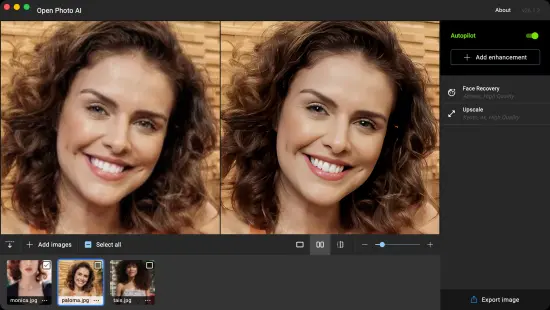
There are many excellent AI-based photo editing tools available today, ranging from open-source solutions – often powerful but complex to set up and use, such as ComfyUI – to commercial products that favor ease of use over deep customization, like those from Topaz Labs.
I have long used both ComfyUI and Topaz Labs solutions, choosing between them depending on the task. Recently, however, Topaz Labs moved from a perpetual license to a subscription-based pricing model, a change I strongly dislike. As a developer, I am happy to pay for software that is useful for me, whether open source or proprietary, but I believe subscription models are rarely designed to benefit users and instead primarily serve company interests.
That is why I created this project: an open-source alternative to Topaz Photo AI. It may never match the same level of polish or performance – Topaz has teams of full-time engineers, while this is a solo project built in my spare time – but I have ambitious goals and aim to reach feature parity with their product over time.
Usage
- Click on the button
Browse imagesto select one or more images that you would like to enhance. - The images are enhanced automatically or manually depending on the toggle
Autopilotin the top right side of the screen:- If enabled, the app will automatically analyse the images and suggest enhancements for them.
- If disabled, you will need to select the enhancements yourself, using the button
Add enhancement.
- Select one or more images that you would like to export on the image drawer at the bottom of the screen.
- Click on the button
Export image, select the location and image format, then click onExport.
Face Recovery
- Athens: use when identity fidelity matters most. This model lets you preserve facial structure while restoring details, even on heavily degraded faces. Best when you want restoration without changing the person.
- Santorini: use when you want aggressive, fast enhancement and can tolerate identity drift. It produces sharp, visually pleasing faces on moderate degradation, but may hallucinate features and alter identity on very low-quality inputs.
Verdict: if identity matters, start with Athens; if aesthetics matter more, use Santorini.
Light Adjustment
- Paris: use when working with images affected by poor or uneven lighting, such as night scenes, backlit photos, shadows, or overexposed areas. It’s useful when you need to enhance visibility and contrast so that images look clearer.
Upscale
- Tokyo: use when you want a natural upscale without exaggeration. It focuses on preserving the original look and fine structures instead of “inventing” new details, making it ideal when realism and faithfulness matter more than sharpness.
- Kyoto: use for real-world photos (people, landscapes, products). It excels at restoring details while handling noise, blur, and compression artifacts. Ideal for practical applications where images are imperfect, and you want visually pleasing, robust results fast.
- Saitama: use for cartoon, drawings, line art, and digital illustrations. It preserves clean lines, flat colors, and stylized shading without introducing photo-like textures. Best when sharp edges and stylistic consistency matter more than realism.
Verdict: start with Tokyo, then try Kyoto if the result looks too soft.