Portable PhotoCraft 0.7.0 (x64)
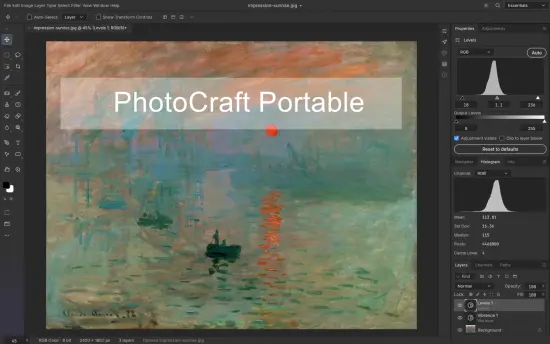
PhotoCraft Portable is a desktop image-editing application built for people who want familiar, hands-on tools for creating and refining visual work. Its design centers on a layered workflow: users can arrange artwork into separate components, adjust color and tone without permanently changing the original pixels, add editable text and vector shapes, and apply effects to build a finished composition. The result is an editor intended to support everyday image tasks as well as more involved design projects, while keeping the tools organized in a workspace that will feel recognizable to users of established graphics software.
The application is presented as an open-source project written in Rust, with support for desktop platforms including macOS, Windows, Linux, and FreeBSD, as well as a web version. Its stated goal is to offer a native editing environment with broad creative capabilities and compatibility with real PSD documents. Because the project is in an early-alpha stage, PhotoCraft Portable is best approached as actively developing software rather than as a guaranteed substitute for a mature professional editor in every production workflow.
What Is PhotoCraft Portable?
PhotoCraft Portable is a raster and layered graphics editor for composing, retouching, and transforming images. Rather than treating an image as one flat surface, it lets users work with layers and other editable elements. A project might contain a photograph on one layer, a title on another, a vector frame above it, and adjustment layers that control color or contrast across selected regions. Keeping these parts separate makes it easier to revisit decisions and revise one element without rebuilding the whole image.
This approach is useful for many common tasks: correcting a photo, assembling a social media graphic, creating a poster, preparing a thumbnail, adding captions, or experimenting with a visual idea. A layered project can be developed gradually. Text can remain editable, masks can constrain where adjustments appear, and effects can be changed or hidden as the composition evolves.
PhotoCraft Portable also aims to make the transition easier for people who already know traditional image-editing conventions. Its menus, panels, tools, and keyboard shortcuts are arranged around familiar concepts. That familiarity can reduce the learning curve, though individual behaviors and levels of polish may differ from those of other applications. Users should expect to explore the software and adapt to its current implementation as it continues to develop.
A Layer-Based Workflow for More Control
Layers are central to PhotoCraft Portable’s approach. Each layer can hold a different part of a design, allowing the editor to isolate an element from the rest of the canvas. For example, a portrait, a background, a title, and a decorative shape can be maintained independently. That separation makes it possible to move, reorder, edit, or hide elements without directly altering everything beneath them.
Layer organization becomes especially valuable in projects that change over time. A campaign graphic may need alternate headlines; a product image may need different backgrounds; a poster may require a new color treatment. With a layered file, those revisions can often be handled by adjusting a small number of components rather than starting over. Users can also use layer masks to control visibility, revealing or concealing parts of a layer without erasing them outright.
The application supports adjustment layers, which provide a non-destructive way to modify the appearance of underlying artwork. Instead of baking every tonal change into the image, users can stack adjustments, change their order, modify their settings, mask them, or switch them off. This makes experimentation less risky: a color treatment can be revisited later, and the original image remains available beneath the edits.
For people accustomed to editing flattened images, this may require a slight change in workflow. It can be tempting to apply every correction directly, but making use of layers and masks offers more flexibility. A sensible project structure—clear layer names, logical grouping, and a deliberate order—also helps keep a complex composition manageable.
Non-Destructive Color and Tone Adjustments
PhotoCraft Portable includes a collection of tonal and color tools designed for image correction and creative grading. Its adjustment-layer options include Curves, Levels, Vibrance, Hue/Saturation, Black & White, Channel Mixer, Gradient Map, Photo Filter, Selective Color, and Color Lookup support for common lookup-table formats. Additional operations include tools such as Shadows/Highlights, Replace Color, Match Color, HDR Toning, Desaturate, and Equalize.
These controls address different kinds of image problems. Levels can help set black and white points and adjust midtones. Curves allow more targeted tonal shaping, including channel-by-channel changes. Vibrance and Hue/Saturation can refine color intensity or shift particular hues. Black-and-white conversion and Gradient Map can create stylized treatments, while a lookup table can apply a defined color grade.
Because adjustments can be layered and masked, they need not affect the entire image uniformly. A user could brighten a subject while leaving the background unchanged, bring color back into one region of a monochrome treatment, or apply a subtle tint only to part of a composition. The ability to reorder or disable adjustments also makes comparison straightforward: users can inspect the image with and without a particular edit as they refine the result.
The application also includes histogram-related functionality, giving users a way to inspect tonal distribution while working with certain adjustments. For photographers and designers who prefer deliberate correction over trial and error, visual feedback can help reveal clipped highlights, blocked shadows, or an uneven tonal range. These tools are useful for learning and creative exploration alike, but final results still depend on the image, display, and intended output.
Selections, Masks, and Precise Editing
Selections help define which areas of an image should be affected by an operation. PhotoCraft Portable includes marquee and lasso tools, a Magic Wand, and selection options intended to automate parts of the process, including Quick Selection, Object Selection, and Select Subject. Once a selection is made, users can refine its edge or use it to create a mask.
Selection refinement tools include feathering, expanding, contracting, smoothing, growing, and reselecting. These options can help make the boundary less harsh, improve the fit around an object, or adjust the selection’s size. A selection can be turned into a layer mask, vector path, or shape, making it a starting point for more than a one-time edit.
This workflow is useful for tasks such as changing a background, applying a color adjustment to a subject, or adding a local effect. A portrait might be selected so that skin or clothing can be corrected independently; a product could be isolated for a cleaner promotional layout; or a small region could receive additional contrast without changing the surrounding image.
The project describes its smart-selection processing as running on the user’s machine rather than requiring an account or cloud processing. That can be appealing to users who prefer a locally executed workflow. As with any automated selection tool, results may depend on contrast, detail, edges, and the complexity of the image. Fine hair, transparent materials, reflections, and overlapping objects can require additional refinement.
Editable Type for Posters, Captions, and Graphics
Typography is an important part of many image-editing projects, and PhotoCraft Portable supports both point text and paragraph text. Users can edit text directly on the canvas and control settings such as font, weight, size, leading, tracking, alignment, and color. Keeping text as a live type layer means the wording and formatting can be changed without recreating the lettering as pixels.
That capability can be useful for posters, social graphics, title cards, product promotions, editorial images, and simple branding layouts. A designer can test alternate headlines, adjust spacing, or change the font while preserving the rest of the composition. Paragraph text supports longer blocks of copy, while point text is suited to shorter titles or labels.
Text layers can also receive layer styles, which makes it possible to add effects such as a shadow, outline, glow, or overlay while retaining editable type. This helps users build more dimensional titles without flattening the text prematurely. A color picker with screen sampling can also assist when matching text to a color already present in the image.
When preparing a final file, it is still wise to consider font availability and how the document will be shared. Editable text is most useful when the necessary fonts remain accessible to the recipient or production environment. Keeping a layered working file alongside an exported image can preserve future flexibility.
Vector Shapes and Paths
PhotoCraft Portable combines pixel-based editing with vector-based elements. Its shape tools include common geometric forms such as rectangles, ellipses, triangles, polygons, and lines, alongside Pen, Freeform Pen, and Curvature Pen tools for more customized paths. Shapes can remain resolution-independent, which allows them to be resized without the same loss of crispness associated with enlarging raster artwork.
Shape layers can use gradient fills and strokes, including dashed and aligned stroke options. Users can combine shapes with operations such as unite, subtract, intersect, and exclude, enabling more complex silhouettes and graphic forms. Paths can be kept in a Paths panel, used as vector masks, or stroked and filled as part of a design.
These capabilities make the software relevant not only to photo retouching but also to layout and illustration tasks. A user might create a badge, frame, icon, label, geometric accent, or simple logo-style element over a photograph. Vector components are particularly convenient when a design needs clean edges at different sizes, such as a graphic that will be used both in a small social post and in a larger print layout.
The distinction between vector and raster elements matters in practice. Vector shapes are well suited to crisp geometry and editable outlines, while raster layers are natural for photographs, painting, and pixel-level details. Combining both types of content in one layered document gives users a broad range of compositional options.
Layer Styles for Visual Effects
Layer styles add depth and emphasis to individual layers. PhotoCraft Portable includes effects such as Drop Shadow, Inner Shadow, Outer Glow, Inner Glow, Bevel & Emboss, Satin, Stroke, and Color, Gradient, and Pattern Overlay. These styles can be applied to different layer types, including text, and can be adjusted without permanently painting the effect onto the layer’s contents.
A drop shadow can separate a title from a busy background. A stroke can improve the legibility of lettering or define a shape. Glow effects can suggest illumination, while beveling can give a flat element a more dimensional appearance. Overlays provide a way to fill a layer with a color, gradient, or pattern treatment.
Styles can be copied between layers, and the application offers ways to hide effects together or edit styles loaded from PSD documents. Pattern options include built-in choices and support for defining, importing, and exporting patterns. This provides a useful toolkit for creating reusable visual treatments across related graphics.
As with any effects-based workflow, restraint often produces clearer results. A subtle shadow may improve readability, while several strong effects on every element can make a design feel crowded. Because styles remain adjustable, users can try variations and refine them as the overall composition develops.
Filters with Live Previews
Filters provide another way to alter images, create atmosphere, or add texture. PhotoCraft Portable includes blur options such as Gaussian, Box, Motion, Radial, Surface, Smart, Lens, and Shape blur, along with effects from the Blur Gallery, including Tilt-Shift, Iris, Field, Spin, and Path. Sharpening and noise-reduction tools are also part of the described feature set.
Distortion filters include options such as Twirl, Wave, Ripple, Displace, Shear, and Zig Zag. Pixelate and Stylize categories offer additional treatments, including effects such as Oil Paint, Wind, and Extrude. Render tools can generate elements such as Clouds, Fibers, Lens Flare, and Lighting Effects.
A live preview allows users to see a filter’s impact on the canvas before committing to a setting. When a selection is active, the preview can be evaluated through that selected region, helping the user judge how an effect will interact with the rest of the image. This makes it easier to experiment with a filter while limiting its influence to a subject, background, or other defined area.
The software also describes support for applying filters to smart objects so that the effects remain editable. In that kind of workflow, users can revisit settings, hide or reorder effects, and use masks to control where they appear. This is valuable when a creative direction is still unsettled or when a project may need multiple versions.
PSD Compatibility and Project Portability
PhotoCraft Portable is designed to open and save layered PSD and PSB documents. Compatibility with these formats can be important for users who exchange work with other editors, maintain existing projects, or need to preserve a layered structure during a transition between applications.
PSD workflows can include more than a flattened image. Layers, type, vector content, effects, masks, and adjustment settings may all matter to a project. PhotoCraft Portable’s stated compatibility aims to make those documents useful within its editing environment, rather than treating them only as images to view. However, complex documents can involve software-specific behaviors, so users working on important files should test representative projects and keep backups of originals.
The name “Portable” should not be read as a promise that every version runs without installation or that every system has identical capabilities. In this description, PhotoCraft Portable refers to the software name as requested. Platform support and packaging can vary, so users should check the available build for their operating system and confirm that it suits their setup.
A practical approach is to keep a copy of the original project, open a duplicate in PhotoCraft Portable, and inspect key elements such as text, masks, styles, and adjustment layers. Export a test image and compare it against the expected result before moving a production workflow entirely. This is a straightforward way to evaluate compatibility without risking the source material.
Designed for Desktop and More Than Manual Editing
PhotoCraft Portable is described as available across several desktop operating systems, with a web version also listed. Its use of Rust is part of the project’s technical identity, while the interface is intended to provide a direct visual workspace for editing. The application’s feature set is not limited to mouse-driven operation: its command-oriented design also provides pathways for control through the interface, command-line tools, a JSON control channel, and an MCP server.
That agent-ready approach may be relevant to developers and technically minded users who want to automate or connect editing actions to other tools. Since the same underlying engine can be driven in different ways, the project has potential beyond conventional manual editing. For most everyday users, the canvas, menus, tools, and panels remain the primary way to work; the additional control channels are an optional extension rather than a requirement.
The local editing emphasis and the range of supported platforms can make the software appealing to people seeking a flexible application that does not depend on a single operating system. Still, performance and behavior can vary based on the hardware, document size, operating system, and project maturity. It is sensible to start with a small sample project and become familiar with the interface before relying on it for time-sensitive work.
Who Might Find PhotoCraft Portable Useful?
PhotoCraft Portable may suit users who want to explore a layered image editor with a broad set of familiar tools. Photographers could use it for basic tonal correction, selective edits, retouching, and creative effects. Designers may find its live type, vector shapes, masks, and layer styles useful for posters, banners, thumbnails, and promotional graphics. Hobbyists can experiment with filters and compositing while learning how layered workflows work.
It may also interest users who want to inspect an open-source alternative to established editing applications, contribute to a developing project, or test PSD documents in a different environment. People who value editable layers and non-destructive adjustments may appreciate the breadth of its ambitions.
Because PhotoCraft Portable is at an early-alpha stage, it may be less suitable as the sole tool for a mission-critical production pipeline that depends on flawless compatibility, a highly polished interface, or deeply established support practices. Prospective users should consider testing the specific features they need—especially file exchange, selection behavior, typography, performance, and output quality—before adopting it for regular professional work.
Getting Started with a Practical Workflow
A simple first project can help users understand PhotoCraft Portable without overwhelming them. Begin by opening a copy of an image and saving a working document in a layered format. Keep the original image intact as a base layer, then add a color adjustment layer and experiment with Levels, Curves, or Vibrance. Use a selection or mask to confine one adjustment to a particular part of the image.
Next, add a text layer or vector shape to turn the image into a small design. Try a layer style to improve contrast or separation, then compare the effect with and without the style enabled. If experimenting with filters, apply them selectively and use the live preview to judge their impact. Save the editable project separately from any final exported image.
This workflow demonstrates several of the application’s core ideas: preserving source content, separating design elements, applying reversible adjustments, and testing effects in context. It also provides a convenient way to assess whether the current version performs well on a user’s system and supports the particular file types and techniques they rely on.
A Developing Editor with Ambitious Scope
PhotoCraft Portable brings together many capabilities expected in a modern image editor: layers, masks, adjustment layers, editable type, vector paths, layer styles, filters, and PSD/PSB support. Its broad feature set gives users room to move from straightforward corrections to more elaborate compositions, while the familiar editing model can make its tools approachable to people with prior experience.
Its early-alpha status is an important part of the picture. A wide feature list does not automatically mean that every tool will behave identically to a mature competitor or that every document will transfer perfectly. Users should treat it as an evolving application, test workflows that matter to them, and preserve backups when working with valuable projects. With that sensible approach, PhotoCraft Portable can serve as a promising environment for experimentation, learning, and layered creative work.
Features at a Glance
- Open-source image editor written in Rust
- Desktop support listed for macOS, Windows, Linux, and FreeBSD, plus a web version
- Layer-based image composition and editing
- Layer masks and non-destructive adjustment layers
- Curves, Levels, Vibrance, Hue/Saturation, and other color tools
- Selection tools, including marquee, lasso, Magic Wand, and automated selection options
- Editable point text and paragraph text with character and paragraph controls
- Vector shapes, paths, pen tools, gradients, and shape-combination operations
- Layer styles including shadows, glows, bevels, strokes, and overlays
- Blur, sharpening, noise-reduction, distortion, stylize, and render filters
- Live filter previews and editable filter workflows for smart objects
- Support for opening and saving layered PSD and PSB documents
- Command, CLI, JSON control-channel, and MCP-server pathways described by the project
- Early-alpha software, so important workflows should be tested before production use