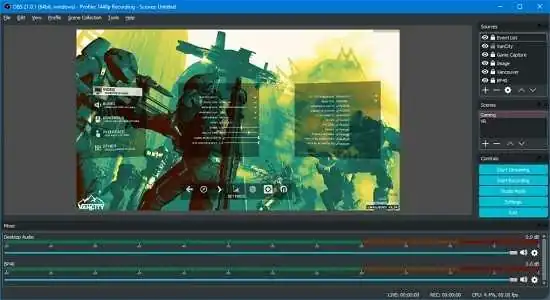
Portable OBS Studio 32.2.2 (x64)
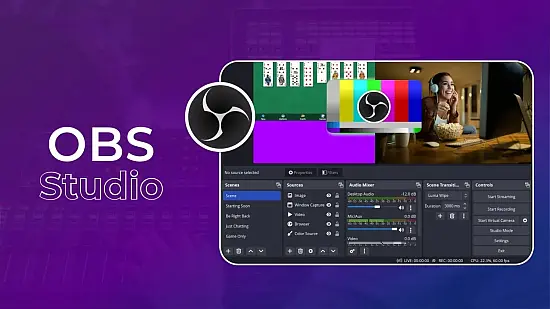
OBS Studio Portable is a versatile live production and screen capture application built for creators who need dependable recording, streaming, and scene-based presentation control in a self-contained workflow. It is widely valued for its ability to bring together multiple media sources, visual layouts, audio inputs, and broadcast-style switching into a single environment that remains accessible to both newcomers and experienced users. In portable form, it becomes especially practical for users who move between computers, produce content in temporary workspaces, or prefer to keep their creative tools self-contained and easy to carry. That combination of flexibility, control, and mobility makes OBS Studio Portable a powerful option for live streaming, tutorial production, online teaching, game capture, event coverage, and general-purpose screen recording. It is designed to help users create polished output without forcing them into a rigid workflow, giving them the freedom to arrange, monitor, and deliver content in a way that suits the task at hand.
Core Purpose
The central purpose of OBS Studio Portable is to let users assemble a live production environment from multiple visual and audio elements. Rather than capturing only one source at a time, the software allows the user to build a composition from scenes, each of which can contain webcams, screens, windows, images, text, browser content, media files, and audio inputs. This scene-based approach is what makes the application especially useful for live streaming and recording workflows that need transitions, overlays, and changing layouts. A user can move from a full-screen demonstration to a webcam-led presentation, then to a split layout with comments or reference material, all within the same project. That flexibility is essential for modern content creation, where a single stream or recording often needs to shift between different visual modes without interruption.
This scene system also provides a sense of organization that helps users manage complex productions. Instead of treating every source as part of one fixed arrangement, the software lets each scene represent a distinct presentation state. That makes it easier to prepare a complete show or recording session in advance. An educational presentation can have one scene for the title slide, another for the webcam and slides, another for screen sharing, and another for closing remarks. A gaming stream can have scenes for gameplay, break screens, intermission notices, and post-game discussion. This structure gives OBS Studio Portable a broadcast-like quality while staying approachable enough for everyday use.
Scene Composition
Scene composition is one of the defining strengths of OBS Studio Portable. Each scene can be built from several layered sources, and those sources can be arranged visually to create a polished presentation. A webcam feed can sit above a screen capture, a logo can be placed in a corner, a title can be added over a background image, and a browser source can display live chat or alerts. Because every element can be moved, resized, cropped, and ordered precisely, users have substantial control over the final appearance of each scene. This is important for content that needs to look professional while still being assembled quickly.
The layering model gives the application great flexibility in composition. Foreground elements can be used to guide viewer attention, while background sources can establish context or atmosphere. Overlays, lower thirds, banners, corner labels, and picture-in-picture layouts are all possible within the same scene system. For users creating branded content, this means they can establish a consistent visual identity across multiple scenes by reusing logos, color schemes, and layout patterns. The software supports this kind of consistency naturally because scenes can be duplicated, adjusted, and reused as templates for future work.
Another advantage of the composition approach is that it supports both simple and elaborate layouts. A user can build a minimal scene with only one source, or a complex production with many sources interacting on screen at once. This makes the software useful for people with different levels of experience and different production needs. A beginner might start with basic screen recording and a webcam, while a more advanced user might build a full broadcast setup with animated overlays, transitions, audio monitoring, and multiple capture points. The same foundational system supports both approaches.
Recording and Streaming
OBS Studio Portable is known for two major workflows: recording locally and streaming live. These two functions share the same production environment, which means the user can prepare one layout and use it for both purposes. A tutorial recorded for later upload may be assembled in the same way as a live lesson or stream. This consistency is valuable because it helps content creators maintain a unified visual style across different delivery methods. It also saves time because users do not need to rebuild their setup for each type of output.
Recording in OBS Studio Portable is particularly useful for screen capture, software demonstrations, game footage, presentations, and educational material. Because it can capture the screen, specific windows, or full desktop views, it is well suited for tutorials and process documentation. Users can record exactly what they want to show while keeping the layout neat and readable. A high-quality local recording can also serve as a source for editing later, allowing the creator to produce polished video content without needing a separate capture system.
Live streaming is equally important. The software gives users control over their live presentation, allowing them to assemble a broadcast environment that can include visual overlays, scene changes, camera inputs, live audio, and other sources. This is valuable for gaming streams, webinars, creative sessions, live support demonstrations, and virtual events. Because the output can be configured in detail, users are able to present themselves in a way that feels deliberate and professional. The software helps bridge the gap between simple screen sharing and a more produced broadcast format.
One of the practical benefits of having recording and streaming together is flexibility. A creator can rehearse with local recording, then go live with the same scene setup. This reduces the chance of surprises and helps the user refine the production before sharing it with an audience. The software becomes a flexible control center for both private capture and public broadcast.
Audio Control
Audio management is a major part of the OBS Studio Portable experience. Live content is often judged as much by sound quality as by image quality, and the software gives users the tools to handle microphones, desktop audio, and additional sound sources with care. Each input can be adjusted individually, allowing the user to balance voice, system sound, music, or other audio components as needed. This makes it possible to create a clear and controlled listening experience, which is especially important in streaming and instructional work.
The software also supports practical audio monitoring workflows. Users can check levels, watch for clipping, and make sure that the right sources are active at the right time. This matters in live environments, where a sound issue can affect the entire session if it is not detected early. By keeping audio controls close to the rest of the production interface, the software helps the user make fast corrections without leaving the workflow. That integration is one of the reasons it is so useful for solo creators who handle both visual and audio production at once.
Audio filters and adjustments add another layer of control. A voice can be refined to sound clearer and more consistent, while other sources can be tuned to fit the overall mix. This kind of flexibility is especially useful for users broadcasting from home or from environments where acoustics are not ideal. The software gives them a practical way to improve the sound within the production process rather than requiring a separate audio chain for every task. That makes it easier to achieve a stable and professional result.
Source Variety
One of the reasons OBS Studio Portable is so useful is the range of source types it can manage. Screen capture, window capture, camera input, images, text, browser-based overlays, video files, audio sources, and other inputs can all be combined in a single scene. This wide source support gives creators the ability to build rich and informative layouts without needing to switch between multiple tools. A stream can include a webcam, a game feed, a comment panel, a progress indicator, and a branded background all at once. That level of integration is what makes the software feel like a true production environment.
The source system also helps users create dynamic workflows. A browser source can display live updates, a media file can be used as an intro or transition clip, and text can be used to label segments or provide information. This means the software is not limited to simple capture; it can become a live presentation system. For educational content, this might mean slide overlays and reference notes. For gaming, it might mean alerts, donation messages, or scene labels. For business presentations, it might mean logos, agendas, and visual branding. The same source model can support all of these scenarios.
Flexibility is further improved by the fact that sources can be reused across scenes. A webcam feed can appear in multiple layouts, or a title card can be repurposed in several different presentations. This saves time and keeps the production consistent. It also makes the software easier to maintain as projects grow more complex, because the user can work from reusable building blocks rather than rebuilding everything from scratch.
Scene Transitions
Scene transitions help make productions feel smoother, and OBS Studio Portable gives users the ability to move from one scene to another with visual control. This is important because live content often shifts between different states, and a hard cut is not always the best choice. A smooth transition can improve the rhythm of a stream or presentation, making it feel more deliberate and less abrupt. The transition system helps users create a more polished experience while keeping the workflow manageable.
Transitions are especially useful when changing between gameplay, commentary, face camera, full-screen visuals, and presentation modes. A clean transition helps the audience understand that the content has shifted without feeling disoriented. This is one of the small details that contributes heavily to a professional impression. Even when the production itself is simple, a thoughtful transition style can make the overall presentation feel more refined.
The software supports the kind of transition variety that lets users define their own style. Some productions may require quick, functional cuts, while others may benefit from more expressive motion or fade behavior. The ability to shape scene movement gives the creator another visual layer to work with, which is important when presentation quality matters. It is a subtle feature, but one that strongly affects how the final stream or recording feels to the viewer.
Studio Monitoring
OBS Studio Portable is not just about output; it also supports the process of checking and controlling what is happening before it reaches the audience or the final file. Monitoring is important because live production often requires confidence that the right sources are active, the layout is correct, and the sound is behaving as expected. The software gives the user a production environment where source status and scene behavior can be observed in real time, helping prevent errors before they become visible to viewers.
This monitoring capability is especially helpful in live events, webinars, and tutorials where mistakes can be distracting. If a source is hidden, misaligned, or producing an unwanted result, the user can correct it more quickly when the workflow is centered around active visual control. Monitoring also supports more confident pacing because the creator can check the state of the production as it develops. That makes the software feel more like a live control desk than a passive recorder.
For users working with multiple sources, monitoring is essential. It is easy for a production to become complex when several cameras, windows, or audio inputs are active at once. The software helps keep that complexity manageable by making it clear which elements are currently in use and how they relate to the visible scene. That kind of operational awareness is one of the reasons the software is so widely trusted by streamers and presenters.
Customization and Flexibility
Customization is at the heart of the software’s appeal. OBS Studio Portable can be shaped to match the needs of different creators because it does not force a single visual or technical style. Users can build clean minimalist layouts, elaborate branded productions, instructional setups, or entertainment-focused scenes depending on the project. This flexibility gives the software a broad appeal because it adapts to the user instead of imposing a fixed format. It becomes a production platform that can be as simple or as detailed as necessary.
Customization also extends to workflow preferences. Different users prefer different arrangements of sources, scenes, and audio controls, and the software can be adapted to reflect those habits. A teacher may want a simple setup that is easy to switch during a lesson. A gamer may want a more visual, branded stream interface. A technical presenter may want a layout that prioritizes readability and camera presence. The software can support all of these because it is built around configurable scenes and modular sources.
The value of customization is not only aesthetic. It also affects practical efficiency. When the layout and controls match the user’s working style, production becomes faster and less stressful. The software supports that kind of personalization well, which helps it remain relevant for a wide range of content creation workflows.
Portable Workflow
The portable version of OBS Studio Portable is particularly attractive for users who need flexibility in how they work. A self-contained setup is useful when moving between different machines or using shared systems where a full installation would be inconvenient. It also helps users keep their production environment organized in one place, which can be a major advantage when working on temporary projects or in environments where system changes need to be kept to a minimum. The portable model fits naturally with the software’s practical, creator-focused identity.
This kind of workflow is valuable because live production often happens outside a fixed studio. Creators may stream from home, a classroom, a temporary office, or a travel setup. Having a portable application means the same familiar production environment can move with them. That consistency reduces setup time and lowers the chance of configuration problems. It also helps users feel more confident because they are working in a known environment rather than adapting to a different installation each time.
For anyone who values mobility and predictability, the portable approach adds real convenience. It supports the idea that serious production tools do not have to be tied to one machine. The user can focus on content instead of software setup, which is especially useful when deadlines are short or production conditions change quickly.
Use Cases
OBS Studio Portable fits a broad set of real-world applications. It is ideal for live streamers who need a reliable way to present gameplay, commentary, or creative work. It is equally useful for educators who want to share slides, software demonstrations, or instructional content. Business users can employ it for presentations, internal training, and virtual events. Content creators can use it to capture and package material for later editing, while technical users can rely on it for demonstrations, tutorials, and screen-based communication.
The software is also practical for hybrid workflows. A user might record a lesson for later publication while also preparing it for live delivery. A presenter might create a scene-based layout for a webinar that includes both slides and camera presence. A creator might build a full branded stream with overlays, alerts, and transitions while still keeping the setup simple enough to run alone. These use cases show that the software is not limited to one audience or one production style.
Because it is adaptable, the application can grow with the user. Someone who begins with simple screen recording may later expand into more advanced live production. The same tool can support that progression without forcing a switch to a different workflow. That continuity is one of the software’s most valuable traits.
Why It Stands Out
OBS Studio Portable stands out because it combines practical production power with a workflow that remains understandable. It gives creators the ability to manage many moving parts without losing sight of the overall result. Scenes, sources, transitions, audio controls, and output options work together in a way that feels coherent rather than fragmented. That makes the software appealing to users who want real control over their recordings and streams without a lot of unnecessary complexity.
Another reason it stands out is its balance of simplicity and depth. A newcomer can use it for a basic recording or simple stream, while an experienced creator can build a much more elaborate production. That scalability is important because creative workflows tend to evolve over time. The software can remain useful as needs become more advanced, which gives it long-term value.
The portable form adds another layer to that value by making the software easy to transport and use in different environments. The result is a production tool that is not only capable but also practical in everyday use. It supports the kind of flexible working style that modern content creation often requires.
Conclusion
OBS Studio Portable is a powerful and adaptable live production and recording tool that brings scenes, sources, audio, transitions, and output control into one flexible environment. Its scene-based workflow makes it easy to build polished presentations for streaming, recording, teaching, demonstrations, and event coverage. The software supports a wide range of content creation needs while remaining approachable enough for users who are just getting started. Its portable form makes it especially useful for creators who move between systems or prefer a self-contained workflow. For anyone who needs serious screen capture and live production capability in a practical, mobile package, OBS Studio Portable offers a reliable and highly flexible solution.
Features at a Glance
- Scene-based live production environment for recording and streaming.
- Supports multiple visual sources in layered compositions.
- Ideal for screen capture, webcam use, window capture, and media overlays.
- Flexible layout system for tutorials, gameplay, presentations, and broadcasts.
- Local recording and live streaming in the same production workflow.
- Audio mixing and control for microphones, desktop sound, and additional inputs.
- Audio monitoring and level management for live confidence.
- Support for text, images, browser content, and media files as sources.
- Reusable sources across scenes for consistent production setups.
- Scene transitions for smoother movement between presentation states.
- Suitable for gaming, education, business, and content creation.
- Customizable layouts and workflows to fit different creator styles.
- Practical for both simple capture tasks and more elaborate broadcast setups.
- Portable working style for use across different systems and environments.
- Self-contained setup well suited to mobile, shared, or temporary workflows.
Release Notes:
New Features
- Replaced add source dropdown with new dialog [Warchamp7]
- Added copy paste functions to frontend API [exeldro]
- Added filter to compose SDR into HDR [jpark37]
- Added delete as a hotkey to delete sources on macOS [PatTheMav]
- Added dynamic bitrate support to multitrack video [lexano-ivs]
- Added missing file support for filters [exeldro]
- Added ability for plugins to set custom icons for new source types [cg2121]
- Improved FPS selector UX [jcm93]
- Included .webp files when adding a directory to Image Slide Show source [TarunCore]
Changes
- Forced Intel-based installations to update to Apple Silicon version on macOS [PatTheMav]
- This change means that OBS Studio versions built for Intel-based Macs but running on Apple Silicon Macs will automatically update to OBS Studio built for Apple Silicon Macs. If an installation was using third-party plugins, those plugins will no longer load until replaced with Apple Silicon versions.
- Fixed audio mixer state getting out of sync when changing settings via websockets or plugins [Warchamp7]
- Added theming for checked QToolButtons [glikely]
- Added minimum width to spinboxes [Warchamp7]
- Changed new capture devices to use fallback frame rate by default [PatTheMav]
- Improved OpenGL performance slightly on low-end machines [kkartaltepe]
- Set minimum size for color source to 1 pixel [exeldro]
- Disallowed overwriting the crash handler [sebastian-s-beckmann]
- Applied process mitigation policies for Windows [notr1ch]
- Adjusted description of multitrack video [jhnbwrs]
- Improved DLL loading behavior on Windows [notr1ch]
- Limited multitrack video config to Custom service [PatTheMav]
- Removed redundant “Monitor Only” from the Advanced Audio Properties window [Warchamp7]
- Mute and Monitor are handled independently in the new Audio Mixer
- Removed Close button from What’s New dialog [Warchamp7]
- Removed margins from What’s New dialog [Warchamp7]
Bug Fixes
- Fixed OAuth and dock state save corruption [PatTheMav]
- Fixed group bounds not resizing when removing items [howellrl]
- Fixed canvas mixes not being restored after video reset [dsaedtler]
- Fixed some erroneous crashes during shutdown [Warchamp7]
- Fixed display capture sometimes capturing black after a duplicator failure [ThrowTop]
- Fixed color of controls dock output buttons in System theme [shiina424]
- Fixed virtual camera reset failures [stephematician]
- Fixed potential crash when user discards changes in the settings window [suogesi]
- Fixed incorrect return value in virtualcam filter [xtfo]
- Fixed source toolbar buttons not working after dragging a source into a group [Warchamp7]
- Fixed properties hint icon spacing [Warchamp7]
- Fixed potential crash when a video device reconnects on macOS [jcm93]
- Fixed an issue where PipeWire could fail on NVIDIA GPUs [hoshinolina]
- Fixed obs_canvas_get_video_info returning incorrect framerate [dsaedtler]
- Fixed NVENC using incorrect bitrate in CQVBR mode [Lordmau5]
- Fixed VAAPI AV1 not working when streaming with WHIP [RytoEX]