Portable FilmCraft 0.9.0 (x64)
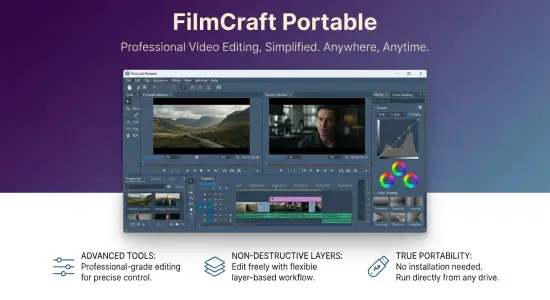
FilmCraft Portable is a desktop video-editing application designed for creators who want a familiar timeline workflow alongside a media engine built specifically for the project. It brings together source and program monitors, media bins, multitrack editing, color controls, effects, audio tools, titles, and export features in one application. Its approach will feel recognizable to editors who have used professional nonlinear editing software, while its underlying implementation is written in Rust and includes native media codecs.
The editor is available for Windows, macOS, and Linux. A portable Windows edition is also available, allowing the program to be run from an extracted folder rather than installed through a traditional setup process. FilmCraft is free and open source, and it remains under active development. That makes it an interesting choice for editors who want to explore an evolving alternative to established editing tools, while keeping in mind that its feature set and workflows are still developing.
What Is FilmCraft Portable?
FilmCraft Portable is a nonlinear video editor: footage, sound, graphics, and other media can be arranged as clips on a timeline, adjusted independently, and combined into a finished sequence. Unlike a strictly linear workflow, nonlinear editing lets you revisit earlier sections, rearrange shots, refine timing, and make changes without rebuilding the entire project from the beginning.
The application is organized around familiar editing concepts. Source and program monitors provide separate views for reviewing media and watching the edited sequence. Bins help organize project assets, while the timeline supports multiple video and audio tracks. Dedicated workspaces group tools for editing, assembly, color correction, effects, and audio work.
FilmCraft also emphasizes precise timing. Its integer-based time representation is designed to handle frame rates such as 23.976 and 29.97 drop-frame without accumulating rounding errors. For an editor, that matters when aligning cuts, matching sound to picture, or maintaining consistent timing across a long sequence.
A Familiar Timeline Editing Workflow
The timeline is central to FilmCraft Portable. It is where clips are assembled, trims are refined, and the visual and audio parts of a project are brought together. Multiple tracks allow editors to layer picture, dialogue, music, titles, and other elements, while track controls help manage how those layers interact.
The source monitor is used to review a clip and define the portion intended for an edit. The program monitor shows the current sequence, making it easier to assess the result in context. FilmCraft supports three-point editing: editors can mark an in-point and out-point in a source, then place that selection into the timeline using an insert or overwrite operation. This approach helps control exactly where a shot begins and ends without relying only on dragging.
A range of trim modes supports different editing situations. Trimming can be used to adjust a cut, alter the length of a clip, or change the timing relationship between adjacent shots. Dynamic trimming with J, K, and L keys provides a keyboard-centered way to review and adjust edits during playback. Editors who prefer a hands-on timeline can use these controls to refine pacing while keeping attention on the sequence.
FilmCraft includes linked selection and synchronization controls for working with related clips. These features are useful when video and audio should move together or when particular tracks need to remain aligned. Ripple operations can help close gaps or move later material in response to a trim, reducing the need to reposition every subsequent clip manually. As with any editor, it is worth checking how track locks and linked items behave before making a large change to a complex sequence.
Project Organization and Workspaces
Video projects often include more than camera footage. They may contain voice recordings, music, still images, graphics, title assets, and alternate versions of shots. FilmCraft Portable provides bins and thumbnail-based media organization to make project contents easier to browse. Keeping assets grouped by scene, shoot day, camera, or purpose can make it faster to find the right material as a project grows.
Workspaces offer different arrangements of panels for common tasks. Editing and assembly layouts support clip selection and timeline construction. Color and effects layouts bring relevant controls closer to the image being adjusted. An audio workspace provides access to mixing and sound-related tools. Panels can be docked in different positions, so users can adapt the interface to their screen size and preferred working style.
A consistent organizational routine can make the application easier to use, especially when several versions of a sequence are being developed. Descriptive bin names, clearly labeled tracks, and sensible project-folder structure help reduce confusion later. Before moving project media or changing storage locations, users should also consider how file paths are handled, particularly when sharing work across machines.
Frame-Accurate Editing and Timecode
Timing accuracy is essential in editing. A clip that appears to be only a frame out of place can affect a cut, a sound cue, a title, or a delivery specification. FilmCraft Portable uses an integer timebase to represent time in a way intended to avoid drift and rounding ambiguity. This is particularly relevant for fractional frame rates and drop-frame timecode workflows.
For everyday editing, the benefit is straightforward: precise frame positioning supports dependable cuts and repeatable adjustments. Editors can work with footage, transitions, and audio in a timeline where frame boundaries are treated as an integral part of the editing model rather than an approximation.
This precision can be useful in projects that require close synchronization, such as interviews, music edits, short-form promotional videos, and multi-camera sequences. It is also relevant when a project must meet a specific duration or align to an established delivery format. The timebase does not replace careful review, but it provides a strong foundation for exact editing.
Native Codecs and Media Handling
FilmCraft Portable includes its own implementations of media codecs and formats instead of depending on FFmpeg as an internal component. Its listed media support includes H.264, HEVC, ProRes, VP9, AAC, and Opus, along with native handling of common media workflows. The project describes its decoders as bit-exact, reflecting a focus on consistent, predictable media interpretation.
A built-in media engine can give the application close control over how files are read, decoded, and processed. It also means that supported formats and compatibility behavior are tied to FilmCraft’s own development. Editors should therefore test their specific camera files, audio recordings, and delivery requirements with the version they plan to use. A codec name alone does not guarantee that every profile, variant, or unusual file configuration will behave identically.
FilmCraft’s media approach is one of its distinctive technical characteristics. Rather than treating codecs as an invisible external dependency, the application makes media handling part of its own engineering foundation. This can be appealing to users interested in an editor designed as an integrated system, while also making project testing important when working with specialized formats or production pipelines.
Color Correction, Grading, and Scopes
FilmCraft Portable includes tools for adjusting the appearance of footage. Curves and color wheels provide ways to shape tonal balance and color, while HSL secondary controls allow more targeted work on selected hues. These tools can be used to correct exposure and color inconsistencies, create a more consistent look across shots, or develop a deliberate visual style.
LUT support helps users apply lookup tables as part of a grading workflow. FilmCraft also lists HDR and log workflows, which are relevant when working with footage captured to preserve a wider range of image information. Since camera formats and color-management expectations vary, it is sensible to confirm how a particular project’s media is interpreted before committing to a final grade.
Scopes provide a technical view of image properties alongside the visual preview. They help editors evaluate levels and color relationships more objectively than relying only on a display. A calibrated monitor remains valuable for visual judgment, but scopes can make it easier to spot issues such as clipped highlights, crushed shadows, or inconsistent levels between shots.
The combination of image controls and scopes supports both creative and corrective work. Editors can begin by matching shots, then apply broader stylistic adjustments. For a polished result, it is usually helpful to work in stages: correct exposure and white balance first, match related shots, and then apply the intended look.
Effects, Transitions, and Keyframes
FilmCraft Portable offers a collection of video effects and transitions for shaping a sequence. Effects can be used for practical corrections or visual treatments, while transitions help control how one shot gives way to another. The software’s feature overview lists about 55 video effects and 30 transitions.
Keyframes provide control over how an effect or property changes over time. Rather than applying one fixed setting to an entire clip, an editor can animate values so that a parameter changes as the sequence plays. FilmCraft includes value and velocity graphs for keyframed animation, helping users inspect both the changing values and the pace of those changes.
A linear-light GPU compositor handles compositing operations. Compositing is important when combining layers, titles, and effects, and a GPU-based pipeline can help process visual work efficiently on supported systems. Performance will depend on the project, media, hardware, and effect load, so users should test demanding timelines on their own machines.
Effects are most effective when they serve the edit rather than distract from it. Subtle adjustments can improve continuity or guide attention, while animated properties can add polish to titles and graphics. FilmCraft’s controls provide a basis for that work, though the best results still come from deliberate choices and careful playback review.
Audio Editing, Mixing, and Loudness
Audio is an essential part of a finished video, and FilmCraft Portable includes tools for working with sound on the timeline. Separate audio tracks can hold dialogue, music, ambience, and effects. A mixer with automation offers a way to balance levels and make adjustments that change over time.
The application includes native digital signal processing effects and EBU R128 loudness meters. Loudness measurement is useful when preparing audio for workflows that specify target levels or when aiming for consistent perceived volume across a program. Meter readings can help identify material that is too quiet, too loud, or inconsistent, although they do not replace listening on suitable speakers or headphones.
A practical audio workflow begins with clear track organization. Keeping dialogue, music, and sound effects separate makes it easier to adjust each element without affecting the others. Automation can then shape level changes, such as lowering music under speech or gradually increasing ambience. Before export, listening through the sequence from beginning to end can reveal abrupt edits, clipping, unwanted noise, or balance problems that may not be obvious when checking isolated sections.
Export and Project Interchange
Once an edit is complete, FilmCraft Portable provides export tools for rendering a finished video. Export settings determine how the sequence is encoded and where the resulting file is saved. A project may need different versions for online publishing, review, archiving, or further post-production, so it is useful to choose settings according to the intended destination rather than relying on a single preset for every situation.
Interchange features support moving project information between workflows where compatible formats are available. The application has continued to improve interchange behavior, including clearer handling of unsupported formats and titles that cannot be carried across. Such details matter when a project is being transferred or used alongside other tools: interchange formats may not represent every effect, title, or edit decision identically.
Before delivering a final file, review the rendered output independently of the editor. Check the beginning and end, inspect transitions and titles, listen to the audio, and confirm that the file matches the intended resolution, frame rate, and encoding settings. This final review is a simple but valuable safeguard against export settings or timeline issues.
Automation and Technical Flexibility
FilmCraft’s editing engine exposes operations as commands, supporting automation through command-line and structured-control interfaces. The project includes CLI and JSON control capabilities, with MCP also listed among its automation options. This makes FilmCraft potentially useful not only for hands-on editing but also for repeatable workflows, scripted tasks, and tool-assisted project operations.
Automation can be helpful for routine work such as inspecting sequences, placing or replacing clips, or applying consistent operations across projects. It can also support technical users who want to connect editing tasks to other software. FilmCraft’s development history includes changes to command behavior and sequence inspection, illustrating how the application’s automation capabilities are being built alongside its graphical editing features.
These interfaces are best approached incrementally. Start with a small test project, verify what a command changes, and preserve a backup before automating work on important material. The command line and structured interfaces can offer efficiency, but their value depends on understanding the project state and the behavior of each operation.
Portable Use and Supported Platforms
FilmCraft is available for Windows, macOS, and Linux, with builds and packaging options varying by platform. The portable Windows edition is intended to run without a conventional installation: extract the package and launch the application from its folder. This can be convenient for testing the editor, keeping a separate working copy, or using it in an environment where installing applications is inconvenient.
Portable use does not automatically mean that every project asset is contained inside the application folder. Media files, cache data, settings, and project files may have their own storage locations or path dependencies. For reliable work, keep project files and source media organized, and check that a project can locate its footage after it is moved to another drive or computer.
FilmCraft is actively developed, so users should consult the release information associated with the build they choose when they need precise details about compatibility or newly added behavior. The portable package is a convenient way to run the software, but normal project backups and media management remain important.
Who Might Benefit from FilmCraft Portable?
FilmCraft Portable may suit independent editors, video hobbyists, students, and technically curious creators who want to explore a free, open-source nonlinear editor. Its familiar monitor-and-timeline design can make it approachable to people who already understand common editing concepts. Its focus on native codecs, exact time representation, color tools, and automation may also appeal to users interested in how an editing system is built.
It can be a useful option for learning, experimenting, and developing smaller projects. Editors evaluating it for professional or deadline-sensitive work should first test the exact media formats, effects, export requirements, and collaboration steps their projects depend on. FilmCraft is in active development, and its current capabilities should be judged by practical testing rather than assumptions based on other editors.
Getting Started with FilmCraft Portable
A sensible first session is to create a small project with a few video clips, one audio track, and a title. Import the media, organize it into bins, mark source ranges, and assemble a short sequence. Then try a trim, a transition, a color adjustment, and an export. This reveals the application’s workflow without putting a large project at risk.
For longer work, create a clear folder structure and keep source media in a stable location. Save project versions at meaningful milestones, particularly before major structural edits or interchange operations. If using a portable package, avoid separating the project from its media unless you have confirmed that the project can relink those files as expected.
FilmCraft Portable combines a conventional editing workflow with an independently developed media and processing foundation. Its timeline, monitors, trims, effects, color tools, audio controls, and automation support a broad range of editing tasks. For users interested in an evolving open-source editor, it offers a substantial set of capabilities and a practical way to explore a different approach to video production.
Features at a Glance
- Nonlinear editing with a multitrack timeline
- Source and program monitors
- Bins with media thumbnails
- Three-point editing, insert and overwrite operations
- Multiple trim modes and J/K/L dynamic trimming
- Integer-based timing designed for frame accuracy
- Native support for selected video and audio codecs
- Color wheels, curves, HSL secondaries, LUTs, and scopes
- HDR and log workflow support
- Video effects, transitions, and animated keyframes
- Linear-light GPU compositing
- Audio mixer, automation, DSP effects, and EBU R128 loudness meters
- Export tools and project-interchange features
- CLI, JSON control, and MCP automation capabilities
- Windows, macOS, and Linux editions
- Portable Windows package available
Latest Changelog
- Preserves the selection of individual linked clips during deletion.
- Prevents UTF-8 slicing errors in interchange file URLs.
- Preserves Unicode prefixes in image-sequence filenames.
- Prevents nested renderer-pool deadlocks during export.
- Improves how stored media paths are followed across the current computer and a project share.
- Updates continuous-integration workflows for FreeBSD and Nix checks.