

Portable EternalDub 1.4
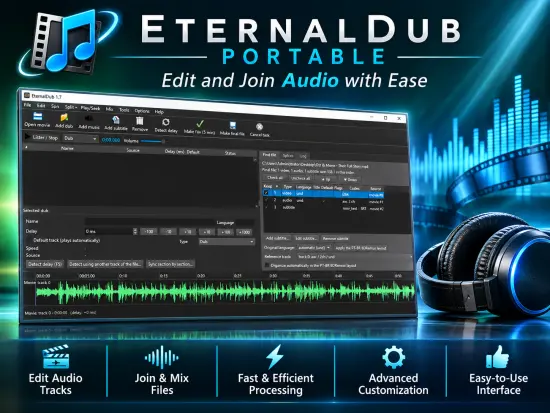
Many classic dubs only circulate attached to low-quality video (bad DVD/BD rips, heavy re-encodes). Because of that, a lot of films look much older than they are. Better releases already exist (BDRemux, 35 mm scans), but they don’t have the dub.
Putting a dub on a better release usually means juggling several programs, one to measure the delay, another to adjust it, another to mux, and a player to check the result. EternalDub does all of it in a single window.
Features
- Lossless. The movie’s video, audio and subtitle tracks are copied, never re-encoded. A built-in hash check proves they are identical in the final file.
- Automatic delay detection. EternalDub compares the music and sound effects of the dub with the movie’s original audio (cross-correlation), so it works even though the voices are different. It reads only short excerpts of the movie, which keeps it fast even with large UHD remuxes.
- Speed differences. It detects speed differences such as PAL (25 fps) against film (23.976 fps) and offers to correct them. Only the dub is converted (to lossless FLAC); the video is never touched.
- Different cuts, synced section by section. When the versions have different cuts (or the dub was re-edited by whoever uploaded it), the delay changes along the movie. EternalDub measures it at every second, finds each change and assembles the dub piece by piece: where the dub is missing a piece of the movie, silence goes in; where it has something that doesn’t exist in the movie, that piece is removed, preferably during a pause. Only the dub becomes FLAC (lossless); the movie is not touched.
- Waveform view in the style of Subtitle Edit. Drag the dub to adjust the delay by hand, or use the ±10/100/1000 ms buttons.
- Edit the splices by hand. In section-by-section sync, every splice is a red line on the waveform: drag it, nudge it with the arrow keys (10 ms; Shift 100 ms; Ctrl 1 ms), type its exact time or amount, add a splice anywhere (right-click) or remove a false one. Ctrl+drag slides only one section. A magnet snaps splices into the pauses of the dub, and the Splices tab tells you whether each one falls in a pause or in the middle of speech or music, so a line is never cut by accident. Everything has Undo/Redo.
- Listen inside the program. Press F8 to hear the dub exactly as it will end up in the file (delay, speed correction and splices applied), the movie’s reference audio, or both mixed (if their music and effects match, the sync is right). Click the ruler to choose where to start; F9 plays 3 seconds before and after the selected splice. No test file needed.
- Several dubs at once, from one or many files, each with its own name, language and default flag.
- Organize the final file. The Final file tab lists every track that can go into the MKV (the movie’s own, the dubs and the added subtitles) in the order they will have: tick what goes in (Check all / Uncheck all buttons), change the order with Up/Down and pick the default audio and subtitle. With the interface in Portuguese it starts in the PT-BR BDRemux layout: 1) PT-BR audio, 2) the original-language audio, 3) PT-BR subtitles. It can also just reorganize a movie, with no dub at all.
- Add subtitles like you add dubs:
.srt,.ass,.ssa,.vtt,.sup,.idx/.subor a subtitle track from another MKV/MP4, each with a name, language, delay and forced flag. Text subtitles in Windows-1252 or UTF-16 are converted to UTF-8 so accents come out right. - Music videos: the high-quality song in place of the poor sound. Open the music video (VHS, TV, internet) and use Add music with the FLAC or MP3 of the same song (from a CD, a digitized LP…). EternalDub measures the delay to the millisecond, finds small speed differences (tape, capture card, NTSC/PAL) and corrects them like a tape (resampling: exact timing and no artifacts), makes the song start and end as in the clip (fade-in, fade-out or cut) and ends it together with the video. The clip’s original sound stays in the file as a second track.
- Test and automatic check. It makes a 5-minute test file first. After muxing, it checks that every dub has sound, is in sync and is well interleaved with the video inside the final file (audio written far away from its video makes some players go silent).
- All in one place. Detection, manual adjustment, muxing and verification happen in a single window.
- Interface languages: Portuguese (Brazil), English, Spanish, French, Italian and German. Each language is a plain
.jsonfile inidiomas/, so anyone can add another one without programming.
How to use
- Open movie. Choose the high-quality release, or drag it into the window.
- Add dub. Choose the file(s) that contain the dub: an MKV/MP4 with video, or audio only (MP3, AC3, E-AC3, DTS, FLAC, WAV…). If a file has several audio tracks, tick the ones that are dubs.
- Detect delay (F5). The result appears in the list and in the Log tab.
- Tip: if the dub’s file also contains the original-language track (e.g. English), use Sync ▸ Detect using another track of the file with that track. It’s more reliable and applies the result to every dub from that file.
- If it says the versions have different cuts, choose Sync section by section (also available in Sync ▸ Sync section by section, Ctrl+M). The waveform then shows the dub already in place, with every splice marked in red, and the Log lists each splice.
- Check the waveforms. The movie is green and the dub is orange. Fine-tune by dragging the orange waveform or with the buttons.
- Listen: click the ruler to put the blue line where you want to start and press F8 (again to stop). Choose what you hear in the toolbar: the dub already synced, the movie, or both together.
- Fine-tune the splices (when you used section sync): drag the red lines, use the arrow keys, or pick one in the Splices tab (time, amount, Find pause, Listen (F9)). Right-click the waveform to add a splice or remove a wrong one. Ctrl+Z / Ctrl+Y undo and redo.
- Organize the final file in the Final file tab: tick the tracks that go in, change the order with Up/Down, pick the default track, and add subtitles with Add subtitle… (Ctrl+L) or by dragging
.srtfiles into the window. - Make test (5 min) and listen in your player.
- Make final file. The automatic check runs at the end.
- (Optional) Tools ▸ Verify integrity proves that the original video, audio and subtitles are bit-identical.
Projects can be saved (.eternaldub) and reopened later.
Music videos (the high-quality song in place of the poor sound)
- Open movie: choose the music video (for example, the capture of the VHS tape).
- Add music (Ctrl+Shift+M): choose the FLAC, MP3, M4A, OGG or WAV of the same song. Dragging the file onto the window also works: files with artist or album tags come in as music by themselves. The track gets the song’s name (tags) and the final file uses the music video layout: 1) the song (plays automatically), 2) the clip’s original sound.
- Detect delay (F5): reads both files in full (they are short) and measures more strictly than for a dub. If the speed differs (a tape running a little slow, NTSC 0.1%, PAL 4%), choose Correct like a tape (recommended: the pitch changes with it, 0.1% = 1.7 cents, inaudible; the timing is exact and the sound has no artifacts) or Correct keeping the pitch.
- Right after that, EternalDub measures the start and end: how the clip makes the song come in and go out (fade-in, fade-out, hard cut, even with the TV announcer talking over it). The high-quality song does the same, and the orange waveform shows the volume it will have. The middle of the song is never touched. You can turn it off in Follow the clip at the start and the end or measure again.
- Listen with F8 (choose Movie + dub to hear both together) and use Make test / Make final file. The suggested file name ends in
_music.
If the clip uses another edit of the song (one chorus less, an extra pause), detection says so and section-by-section sync assembles the song like the clip. When the song fits in the video with no fades and no speed correction, it goes in by exact copy (the original file, not re-encoded); otherwise only the song becomes FLAC (lossless).
How it works (technical)
- Analysis uses a lightweight copy of the audio (mono, 8 kHz), used only to measure, never written to the output. Band-energy envelopes from the spectrum are cross-correlated with FFT. Several speed ratios are tested (PAL, 24 ↔ 23.976). The quick analysis reads about 1 minute plus four 40-second excerpts of the movie and searches for each one in a larger window of the dub.
- Section sync measures the delay every second (6-second windows, up to ±20 s around the main delay), picks the most likely path with a Viterbi search (the delay only changes when the evidence pays for the change, so stretches with dialogue only don’t create false splices), then finds the exact point of each change frame by frame (20 ms) and, among near-ties, prefers a pause in the dub. The dub is decoded once on the same timeline used by the analysis, assembled with 8 ms crossfades at the splices (no clicks) and written to FLAC (24-bit for lossy sources, 16-bit for 16-bit sources).
- Muxing uses FFmpeg with
-c copyand-itsoffsetfor the delay. Negative delays are applied with a copy-only trim of the dub; since a copy can only cut between audio frames, the leftover part of the frame is given back with-itsoffset(exact, within 0.5 ms). Dubs with speed correction or section sync go in as the FLAC described above, already on the movie’s timeline. The movie’s subtitles come in through a second read of the same file: without it, FFmpeg stops reading the dub while the subtitle track has no line, and the audio of that gap ends up far away from its video inside the file. - Track layout: the order of the
-mapoptions is the order of the tracks in the MKV (videos, then audios, then subtitles). Every audio and subtitle track gets explicit flags (-disposition): exactly one default audio, at most one default subtitle, and the movie’s forced, commentary, hearing impaired and visual impaired flags are kept;-default_mode infer_no_subsstops the MKV from turning a subtitle on by itself. External subtitles are separate inputs: a positive delay uses-itsoffset, a negative one skips the beginning of the subtitle (-ss). MP4 subtitles (mov_text) become SRT, the only change the MKV requires. The integrity check matches every original track by hash wherever it ended up. - Splice editing (
EternalDub_emendas.py): a section map is edited as a list of splices (time, silence inserted, piece removed). Moving a splice never changes the alignment of any section, only where one alignment hands over to the next; the dub always moves forward in time and no section is shorter than 50 ms. A splice whose amount is about 0 ms is removed (it would only leave a 16 ms dip in the sound). The sound at the splice check measures the dub’s level around the cut point (the removed piece plus 50 ms on each side), and the magnet looks for the nearest spot where that level is a pause. A map that was not edited is saved exactly as it came. - Preview (
EternalDub_audio.py): it uses the same assembler as the final file (same delay, speed correction and 8 ms crossfades). FFmpeg starts at the blue line (-ss) and 0.25 s blocks are played as they are decoded (mono, 48 kHz). The automated tests compare it with the real output: identical samples without speed correction, within 1 ms with it (theatempofilter picks its own overlap points). - Music videos (
EternalDub_musica.pyanddetectar_atraso.analisar_musica): the song and the clip’s sound are the same recording, so detection compares sections of the clip (1/15 of its length, 8 to 30 s) with the song, near where they should be (±5 s) and, if they don’t match, across the whole song (different edit). Sections without the song (speech, station idents) simply don’t count. A robust line (Theil-Sen) through the sections gives the delay and the exact speed, with a 25 ms tolerance. Speed is corrected by resampling (asetrateon the audio brought up to 16 times its rate, so rounding the rate never costs more than 0.5 ms). The start and end are measured from the coherent gain ⟨clip, song⟩/⟨song, song⟩ in 100 ms frames (80 to 1000 Hz, zero-phase filter with smooth edges, ±2 ms search for tape wow): speech and hiss don’t look like the song and barely count. A linear, cosine or exponential curve is fitted; a hard cut is located with 20 ms frames. The volume curve is applied by the same assembler as the final file and the preview. - Cache: waveforms are stored in
~/.eternaldub/cache, so a movie is read in full only once. You can clear it in Tools. - Files:
EternalDub_gui.py(interface),EternalDub_core.py(reading, detection, muxing, checks),EternalDub_emendas.py(splice editing),EternalDub_audio.py(preview),EternalDub_musica.py(music videos: start/end, name from tags),detectar_atraso.py(delay detection, also usable from the command line),EternalDub_i18n.py+idiomas/*.json(translations),EternalDub.spec+Gerar_EXE.bat+.github/workflows(standalone program),tests/(automated tests).
Release Notes:
- Music videos: put the high-quality song (FLAC, MP3, M4A, OGG or WAV) in place of the clip’s poor sound (VHS, TV, web). New Add music button (Ctrl+Shift+M).
- Sync built for music: EternalDub ignores the parts of the clip without the song (speech, station idents) and finds the delay and speed within a few milliseconds.
- Speed corrected “like a tape”: the timing is exact and the sound gets no artifacts. For speech, the keep-the-pitch option is still there.
- Start and end like the clip’s: the clip’s fade-in, fade-out or hard cut is measured and repeated on the song. The middle of the song is never touched, and it ends together with the video.
- Final file in the music video layout: 1) the song, 2) the clip’s original sound. The video is never re-encoded.
- Embedded covers (album art, thumbnails) no longer become an extra video track.