
Portable Argus Cleaner 3.2.3
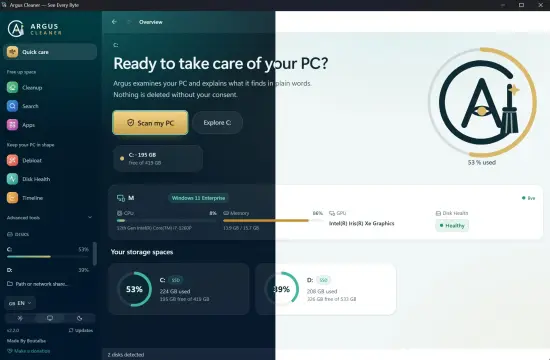
Argus Cleaner Portable is a Windows utility designed to help people understand what is using storage, identify maintenance opportunities, and manage selected cleanup tasks from one interface. Rather than focusing only on temporary-file deletion, it brings together storage analysis, duplicate detection, application management, startup controls, disk-health information, and Windows maintenance tools. Its aim is to make routine PC upkeep more visible: users can inspect what the program has found, consider the potential impact, and decide which actions to take.
The software is intended for people who want a clearer picture of their computer without having to move between numerous Windows settings pages and specialist utilities. Its features range from straightforward tasks, such as reviewing temporary files, to more advanced activities, such as examining disk-health indicators or adjusting system settings. Not every feature is needed by every user, and the program’s distinction between safer items and items that merit closer review can help make that difference clearer.
The name “Argus Cleaner Portable” describes the software in this article; portability depends on using the portable build and its portable-mode files as intended. In portable mode, the program can keep its data beside its executable rather than relying on the usual application-data location. That can suit users who prefer a self-contained folder or who maintain a set of tools on removable storage. Before moving or deleting the program folder, users should preserve any records or settings they want to keep.
What Argus Cleaner Portable Does
A PC can accumulate caches, temporary data, leftover files, old downloads, and applications that are no longer used. Windows provides some built-in ways to manage these items, but finding the right place for each task may take time. Argus Cleaner Portable gathers a range of maintenance and inspection features into a single desktop application.
The program’s role is not simply to delete as much as possible. A useful cleanup tool needs to help people distinguish between disposable data and material that should be kept. Argus Cleaner presents items with different safety indicators, allowing users to identify straightforward cleanup candidates separately from items that deserve inspection or are protected. That approach is important because a file’s size alone does not show whether it is safe to remove.
Argus Cleaner also extends beyond cleanup. Users can explore disk usage, search for files, review duplicate media, inspect application leftovers, manage certain startup entries, and access system-related tools. This makes the software relevant both when a drive is nearly full and when someone wants a broader overview of a Windows PC’s condition.
Analyze Storage and Find Large Folders
When a computer is running low on free space, the first challenge is often discovering where that space has gone. Argus Cleaner Portable includes visual storage-analysis tools that help users explore disks and folders by size. A treemap represents storage as blocks, with larger blocks indicating items that occupy more space. Instead of opening folders one at a time in File Explorer, users can begin with the visual overview and then investigate the areas that stand out.
The visualization is intended to support investigation, not to make deletion automatic. A large folder might contain game files, project assets, personal videos, virtual machines, or other important material. The visual map helps locate it; the user still needs to understand what it is before deciding whether to remove, move, or leave it alone. Breadcrumb navigation and folder-level exploration can make it easier to move between a broad overview and a specific location.
The program also provides ways to compare changes over time. A timeline or snapshots can help users see which folders have grown and when a storage change occurred. This may be useful when a drive steadily loses free space or when a recent installation, update, or download seems to have caused an unexpected increase. The information can point toward the next place to investigate without requiring users to guess.
For someone supporting multiple PCs, a visual report can also help explain a machine’s storage situation to another person. Argus Cleaner offers exportable PC reports, including PDF or PNG output, and an anonymous option that hides selected identifying details such as the PC name, serial numbers, and usernames in paths. Those options can make the report more convenient to share, but users should still review a report before distributing it.
Clean Temporary Files and Application Caches
Temporary files and application caches are among the more familiar cleanup targets. Programs often recreate cache data when needed, but removing it may cause an application to rebuild that data the next time it runs. Argus Cleaner Portable scans recognized locations for temporary data and caches, including locations associated with a range of Windows applications and software types.
The software’s cleanup design emphasizes reviewing what will be removed. Items marked safe are intended to represent data that Windows or an application can regenerate, while other categories may ask for closer attention. Where the interface provides item-level detail, users can examine which application or cache is involved and adjust the selection rather than accepting a broad cleanup without inspection.
Care is especially worthwhile when browsers or other applications are open. Some files may be locked while their programs are running, so a cleanup may be incomplete. Argus Cleaner can report when an open browser prevents some cache data from being cleared. This is preferable to assuming every selected item was removed successfully.
The program also applies safeguards to certain temporary-file operations. Its documented cleanup behavior includes leaving very recent temporary files alone, since an installation or other active task might still need them. Users can also configure exclusions for files or folders they do not want included in cleanup. These protections are useful, but they do not eliminate the need to read the selection before confirming an operation.
Browser cleanup is configurable by profile and category for supported browsers. Depending on the browser and the options selected, categories can include cache, cookies, browsing history, or the downloads list. Passwords are not a cleanup target. Users who rely on cookies to remain signed in, or who need their browsing history and download list, should check each category carefully before proceeding.
Find Duplicate Files, Photos, Videos, and Music
Duplicate files can consume significant space, especially when media collections or working folders have been copied repeatedly. Argus Cleaner Portable offers tools for finding duplicate and similar content, including photographs, videos, and music. The precise matching method depends on the type of material: identical files can be compared differently from visually similar photos or videos that have been resized, cropped, recompressed, or re-encoded.
For photographs, visual similarity detection can help group near-identical images, such as burst shots or edited versions. A sensitivity control can influence how closely images must resemble one another to be grouped. The software can also provide information such as image resolution and sharpness to help users compare candidates. This is useful when several versions exist and the largest file is not necessarily the best one to keep.
Video matching can use information about the video or compare frames from its content. Music matching can use track information that Windows can read, such as artist, title, album, or duration. These tools can reduce the effort involved in sorting large collections, but a match should not be treated as proof that two files are interchangeable. A short clip, alternate mix, edited image, or differently tagged recording might be important even when it resembles another item.
Before deleting anything, review the proposed groups and choose which copy to retain. Argus Cleaner’s reversible quarantine is designed to provide a recovery step for selected operations: files can be moved into quarantine and restored before the quarantine is permanently purged. That is safer than immediate permanent deletion, but it is not a replacement for a separate backup. Important photos, work files, and personal records should be backed up independently.
Review Downloads and Forgotten Files
Downloads folders often accumulate installers, archives, and documents that are no longer needed. Argus Cleaner can help identify large or neglected files and point users toward candidates for review. It can also flag likely copies and certain archives whose extracted contents are already present nearby.
These suggestions are most valuable as a way to find items worth checking, not as a command to remove everything that looks old. A file may be rarely opened yet still be valuable: tax records, archived projects, installation media, or personal photographs are examples. The time since last activity does not establish whether a file is disposable.
A careful process is to open the file’s location, confirm what it contains, and decide whether to keep it, move it to another drive, back it up, or send it to quarantine. If a file is unfamiliar, checking its type and associated application can provide context. When there is uncertainty, leaving the file in place is a sensible choice until its purpose is clear.
Manage Applications and Uninstall Leftovers
Removing an application can leave behind folders, shortcuts, or other traces. Argus Cleaner Portable includes application-management features that can help identify installed programs and look for leftovers associated with software that has already been uninstalled. Depending on the application and installer type, the software may also support a more thorough uninstall process.
Leftover detection needs safeguards because folders can contain data that a user still wants. Argus Cleaner describes checks involving installed applications, registry information, program locations, and running processes before presenting some possible leftovers. The program may also avoid preselecting certain recently used locations. Even with these checks, users should inspect a proposed folder before removing it, especially if it is under a shared application-data or user-profile location.
The program can help make an uninstall more informative by checking whether the software is still present and identifying potential remaining items after the uninstall process. Some removals may require administrator permission, and some may require a restart. A clear status message can help distinguish a completed removal from a cancelled or incomplete one. Users should save work and close the application being removed before starting the process.
Review Windows Startup Programs
Programs that start automatically with Windows can affect startup time and run in the background. Argus Cleaner’s Startup screen presents startup entries and allows users to turn selected programs off or back on. Disabling an entry is different from uninstalling the application: the program remains installed, and the startup setting can be restored later.
This reversibility makes startup management useful for testing whether a nonessential program needs to launch immediately. A messaging client, updater, or helper utility may be convenient at startup, but not essential to every user. Conversely, security software, hardware utilities, accessibility tools, and other services may be important. Review the program name, publisher, and purpose before changing its startup behavior.
Argus Cleaner also includes alerting features associated with changes to startup behavior. Its Radar can notify users when a program adds itself to startup or exhibits certain activity patterns. Such alerts are signals for investigation, not definitive proof of malicious activity. The software does not present itself as an antivirus replacement, and users should continue to rely on appropriate security software and Windows protections.
Check Disk Health and PC Performance
Storage maintenance is not only about free space. A drive’s health, temperature, and reported wear can be useful indicators when deciding whether to back up data or investigate a problem. Argus Cleaner Portable includes disk-health information and can record trends over time, with alerts for certain conditions. These readings can help users notice changes, but they should not be treated as a guarantee that a drive will continue working or as a diagnosis of every hardware fault.
The program’s “My PC is slow” check-up brings together several measurements that can contribute to sluggish performance, including available storage, memory, processor activity, startup programs, disk health, and Windows startup time. Showing the measured areas alongside possible actions gives users a starting point for troubleshooting. A slow PC can have many causes, and the check-up’s findings should be considered clues rather than a promise that a single cleanup will resolve every issue.
Hardware panels can also display information about components and recent activity. This may help users distinguish a storage-capacity problem from a memory or processor issue. For persistent errors, unusual noises, repeated crashes, or signs of failing hardware, users should prioritize backing up important data and seek appropriate technical assistance rather than relying solely on optimization utilities.
Explore Debloat and Windows Maintenance Options
Argus Cleaner includes a Debloat area for reviewing selected Windows settings and preinstalled applications. Its controls are intended to make settings easier to inspect and change, with descriptions and clearer on/off states. Some options affect recommendations, background behavior, or other Windows features; removing or disabling an item can change how Windows works.
Because Windows configurations vary, users should treat these options as choices rather than a universal checklist. A feature that one person considers unnecessary may be useful to another, particularly on a work-managed PC or a device that relies on manufacturer utilities. Read each description, understand the effect, and avoid changing settings on a managed computer without permission.
The application also brings together access to certain Windows repair and maintenance tools. These can include built-in Windows utilities for system-file checks, component repair, update troubleshooting, network reset, or disk checks. Where a tool opens a Microsoft console or native Windows interface, users can see that the maintenance action is being handled by Windows rather than hidden behind an unexplained process.
Portable Use, Languages, and Everyday Operation
The portable build is intended for users who want to run Argus Cleaner from a folder without a conventional installation workflow. In portable mode, its data can remain alongside the program in a local data folder. That can make it easier to carry the tool between locations or keep a dedicated maintenance toolkit. Portable use does not mean every function can operate without Windows permissions: advanced features may still request administrator access, and some actions depend on Windows components or system configuration.
Argus Cleaner supports multiple interface languages, and the software has received ongoing translation and usability improvements. Text-size controls, clearer safety labels, and behavior that brings an off-screen window back into view can make the program easier to use across different displays and accessibility preferences. Users should obtain the software from a trusted distribution channel and check that the downloaded version is the one they intend to run.
The built-in updater is designed to obtain updates and verify a downloaded file’s SHA-256 fingerprint before installation. As with any software, updates can alter behavior or introduce fixes, so it is sensible to keep backups and review release notes when an update affects a feature important to your workflow.
Who Should Use Argus Cleaner Portable?
Argus Cleaner Portable may suit Windows users who want a single place to inspect storage, review cleanup candidates, search for# Argus Cleaner Portable: A Windows PC Cleanup and Maintenance Tool
Argus Cleaner Portable is a Windows utility for reviewing storage, cleaning selected files, and managing several routine maintenance tasks from one interface. It combines disk-space analysis with tools for finding duplicate files, checking application leftovers, reviewing startup programs, and viewing disk-health information. The goal is to help users understand what is happening on a PC and choose appropriate actions, rather than simply deleting everything a scan identifies.
The software can be useful when a drive is running low on space, when a computer feels slower than usual, or when someone wants a more organized way to review maintenance tasks. Its features vary in complexity: examining a storage map is straightforward, while changing Windows settings or removing application remnants calls for more care. Clear categories and review steps help users decide which actions are suitable for their own computer.
The portable build is intended to run from a folder without requiring the usual installation process. Portable mode can keep program data alongside the executable, which may suit a personal toolkit or a removable drive. Some operations may still require administrator permission or depend on Windows components. Before moving or deleting the program folder, preserve any settings or records you want to keep.
What Argus Cleaner Portable Does
Windows includes its own maintenance and storage controls, but related tasks can be spread across different settings pages and utilities. Argus Cleaner Portable brings several of them together, including temporary-file cleanup, storage visualization, duplicate detection, application management, startup controls, and access to selected Windows tools.
A cleanup program should make it possible to inspect what it proposes to remove. A file’s size or age does not prove it is unnecessary: a large folder might contain a game, a project, or a personal archive. Argus Cleaner uses safety categories to distinguish items marked as safe from those that should be checked first or are protected. These labels help guide a review, but users should still make the final decision with the file’s purpose in mind.
The program also offers ways to review system activity and hardware-related information. These features make it more than a one-purpose “junk file” remover. They can help users identify where to investigate next, while leaving decisions such as disabling a startup item or deleting a personal file under the user’s control.
Analyze Storage and Find Large Folders
When a drive is nearly full, locating the biggest space users can reclaim is often more useful than running a general cleanup. Argus Cleaner’s storage visualization presents folders and files as blocks sized according to how much space they occupy. A treemap can make it easier to spot a large folder at a glance, then navigate into it to inspect its contents.
The visualization is a starting point for investigation, not an instruction to delete the biggest item. A large folder could contain video projects, software libraries, backups, or other important data. Reviewing its location and contents before taking action helps avoid removing files that are difficult to replace.
A timeline or snapshots can also help users understand how storage has changed. If free space has been decreasing over time, comparing folder sizes may reveal which locations have grown. That can narrow the search when a recent download, installation, or change in usage appears to be responsible.
Argus Cleaner can export PC reports in PDF or PNG formats. An anonymous-report option can hide selected identifying details, such as the PC name, serial numbers, and usernames appearing in paths. Anyone sharing a report should still inspect it first and confirm that it does not contain information they do not want to disclose.
Clean Temporary Files and Application Caches
Applications often create temporary files and caches to support everyday tasks. Some of this information can be cleared and recreated later, but removing it may cause an application to rebuild its cache or reload data the next time it runs. Argus Cleaner scans recognized locations for temporary data and caches associated with Windows applications and other software.
Before cleaning, users can review the selected categories and, where available, the individual items involved. The safety labels are intended to make the selection easier to understand: items marked safe are distinguished from those that warrant closer inspection. Users can adjust the selection instead of treating a scan result as blanket permission to delete everything.
Some files may be in use while their applications are open. For example, a browser may prevent some cache files from being removed during a cleanup. Closing the relevant program and running the operation again may help, though it is still useful to check the completion message rather than assume the cleanup finished entirely.
The software describes safeguards such as leaving very recent temporary files alone, since an installation or active process might still need them. Users can also configure exclusions for files or folders they want to keep out of cleanup scans. These protections are helpful, but reviewing the selected items before confirming remains the best practice.
For supported browsers, cleanup options can be configured by profile and category. Depending on the browser and selection, categories may include cache, cookies, browsing history, or the downloads list. Passwords are not a cleanup target. Because clearing cookies can sign users out of websites, and removing history or the downloads list may affect later reference, those categories deserve particular attention.
Find Duplicate Files, Photos, Videos, and Music
Repeated copies of files can take up space in photo libraries, video collections, music folders, and work directories. Argus Cleaner Portable provides tools to find duplicates and similar media, helping users review groups of files rather than search manually through every folder.
Exact duplicates are different from similar files. Two documents with identical content may be interchangeable, while two photos that look alike could be separate shots or edited versions. Image similarity detection can group near-identical photographs, such as burst images or resized copies. Options for adjusting sensitivity can affect how similar two images must be before they are grouped. Information such as resolution and sharpness can help with comparisons, but it does not determine which image matters most to the user.
For video, matching can use video information or compare frames. Music matching can use track information available to Windows, such as artist, title, album, or duration. These techniques can surface likely matches, but they may not capture meaningful differences such as a shortened edit, alternate mix, or different version of a recording.
Review each proposed group before removing anything. Argus Cleaner offers a reversible quarantine for selected operations, allowing files to be restored before the quarantine is permanently cleared. That adds a recovery step, but it is not a substitute for a separate backup. Keep important personal files backed up independently.
Review Downloads and Forgotten Files
Download folders tend to collect installers, archives, documents, and copies of files that may no longer be needed. Argus Cleaner can help locate large or neglected files and surface potential duplicates or archives for review. This can be useful when a storage scan reveals that a user folder is taking up more space than expected.
A file that has not been opened recently is not necessarily disposable. It could be a tax document, an old project, installation media, or a personal archive. Treat age and file size as clues for review, not as automatic reasons to delete.
A careful approach is to open the file’s location, confirm what it is, and decide whether to keep it, move it to another drive, back it up, or place it in quarantine. If its purpose is unclear, leaving it in place until you can identify it is safer than removing it based only on a scan result.
Manage Applications and Uninstall Leftovers
Uninstalling an application can leave behind folders or other remnants. Argus Cleaner includes application-management features that can help users review installed software and look for leftovers associated with programs that have already been removed. Depending on the application and installer type, a more thorough uninstall process may also be available.
Leftover detection requires careful review because a folder may contain data that remains useful. Argus Cleaner describes checks that can consider installed applications, registry information, program locations, and running processes before presenting some possible leftovers. Even when checks are in place, users should inspect a proposed folder before removing it, especially when it is in a shared application-data or user-profile location.
Close the program being removed and save any work first. Some uninstall operations may need administrator permission or a restart. Check the reported result afterward so you know whether removal completed, needs further attention, or was cancelled.
Review Windows Startup Programs
Programs that launch automatically can add convenience, but too many startup items may contribute to a longer startup or unnecessary background activity. Argus Cleaner’s Startup screen shows programs that start with Windows and provides controls to turn selected entries off or back on.
Turning off a startup entry is not the same as uninstalling the application. The application remains installed, and the startup setting can be restored later. This makes disabling a nonessential item a reversible way to test whether it needs to launch immediately.
Use care when changing entries. Security tools, hardware utilities, accessibility software, and work-related programs may serve important purposes. Review the program’s name and function before changing its status. Argus Cleaner also includes alert and history features related to startup changes, which can help users revisit notifications and see what they previously marked as normal.
Check Disk Health and PC Performance
Free space is only one part of a computer’s condition. Disk-health information, temperature, and wear indicators may offer useful context when deciding whether to back up data or investigate a drive. Argus Cleaner can display health information and record trends over time, with alerts for certain conditions. These indicators are helpful signals, not a guarantee that a drive will keep working or a diagnosis of every hardware issue.
The “My PC is slow” check-up measures several factors that may contribute to sluggishness, including disk space, memory, processor activity, startup programs, disk health, and Windows startup time. Showing what was measured alongside suggested next steps can give users a more focused place to begin troubleshooting.
A slow computer can have many causes. A check-up result may indicate an area to investigate, but it does not promise that one cleanup will fix every problem. If the PC shows repeated errors, crashes, unusual drive sounds, or signs of hardware failure, prioritize backing up important data and consider appropriate technical support.
Explore Debloat and Windows Maintenance Options
Argus Cleaner’s Debloat area lets users review selected Windows settings and preinstalled applications. Descriptions and clearer on/off states can make these options easier to understand, but changing a setting may affect Windows behavior. A feature that seems unnecessary to one person may be needed by another, especially on a managed work computer or a PC that relies on manufacturer utilities.
Read each option before changing it. Avoid changing settings on a computer managed by an employer, school, or other administrator unless you have permission. When unsure about an option’s purpose, leaving it unchanged is a reasonable choice.
The program also provides access to certain Windows repair and maintenance tools, including native utilities for tasks such as checking system files, repairing components, troubleshooting updates, resetting network settings, or checking disks. These tools can be useful when Windows itself needs attention. Follow the instructions shown by Windows, and save work before starting operations that may take time or require a restart.
Portable Use, Languages, and Everyday Operation
The portable build is designed to run from a folder without the usual installation workflow. In portable mode, program data can remain alongside the executable in a local data folder. This can be convenient for a dedicated maintenance toolkit or for users who prefer to keep an application’s files together. Portable use does not remove Windows permission requirements: some functions may still need administrator access or rely on system components.
Argus Cleaner supports multiple interface languages, and its releases include translation and usability changes. Text-size controls offer normal, large, and extra-large settings. Safety indicators use colors, icons, and words to make categories easier to distinguish. The program can also bring its window back onscreen if it was last opened on a display that has since been disconnected or reconfigured.
A built-in updater is intended to download updates and check a downloaded file’s SHA-256 fingerprint before installation. Keeping software current can provide fixes and improvements; users can review the changelog when they want to understand what changed. As with any maintenance utility, back up important files and review actions before applying changes.
Who Should Use Argus Cleaner Portable?
Argus Cleaner Portable may suit Windows users who want to inspect storage, review cleanup candidates, and manage several maintenance tasks from a single interface. It can be especially useful to people who prefer visual tools for finding large folders, want to compare duplicate media, or need a guided way to review startup programs and basic performance indicators.
It is less suited to anyone expecting a cleanup button to make every PC faster automatically. Storage and system maintenance involve trade-offs: deleting a cache may mean it needs to be rebuilt, disabling a startup item may change how an application behaves, and removing an unfamiliar folder may discard data the user still needs. The software is most useful when its findings are treated as information for informed choices rather than commands to accept without review.
For routine use, start with an inspection, focus on the items you understand, and keep a separate backup of important files. Use quarantine where it is available, check results after operations, and leave uncertain files or settings untouched until you know what they do. That cautious workflow makes the program’s range of tools more useful while reducing the risk of an unwanted change.
Features at a Glance
- Visual disk-space analysis with treemap-style folder exploration
- Storage timelines or snapshots for reviewing changes over time
- Exportable PC reports, including PDF and PNG formats
- Temporary-file and application-cache cleanup
- Configurable browser cleanup by profile and category
- Duplicate and similar-file tools for photos, videos, and music
- File quarantine with an option to restore items before permanent removal
- Review of downloads, large files, and potential duplicates
- Application management and checks for possible uninstall leftovers
- Startup-program controls that can be reversed
- Startup alerts and alert history
- Disk-health information and trend monitoring
- A “My PC is slow” check-up covering several common performance factors
- A Debloat area for reviewing selected Windows settings and applications
- Access to selected Windows maintenance and repair utilities
- Portable mode, language options, and adjustable text size
Release Notes
- Uninstalling no longer suggests shared folders — After uninstalling a program, Argus could suggest deleting its publisher’s whole folder (Microsoft, Google…), shared with other programs. Nothing was ticked by default, but one click too many was enough. Argus now only suggests what carries the program’s exact name, and never touches Windows folders.
- More careful with your personal files — In Search, your videos, music and archives are no longer marked “safe to reclaim”: it may be your only copy. Deleting installers or a snapshot, or abandoning an intervention, now asks for confirmation.
- More reliable Debloat — When Windows refuses to remove an app, Argus says so instead of reporting success. A setting is never half-applied, and Explorer restarts with your usual rights.
- Only one Argus at a time — Launching it again, even from another folder, brings back the open window and tells you where to find it. If an older version is still running (started with Windows, for example), Argus offers to close it. Plus dozens of small fixes found by a team of testers: PDF intervention report, Escape key, translations, small-screen display.